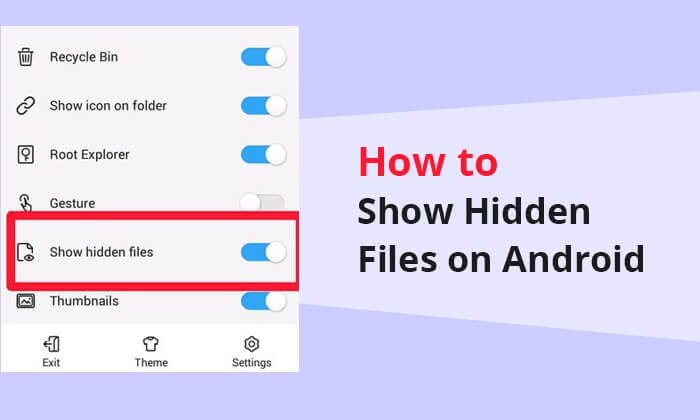
If you want to know how to find hidden files on Android, you can usually locate them through your phone’s built-in file manager or the Files by Google app. Android can hide certain files and folders for different reasons, including protecting system data, keeping app-related files organized, or preventing users from accidentally modifying important information.
Some hidden files are easy to access once you enable the correct setting, while other folders may remain restricted because of Android’s storage and security rules. In this guide, you will learn how to find hidden files on Android, how to recognize hidden folders, how to make them visible again, and what to do if you still cannot access them.
What Are Hidden Files on Android?
Hidden files are files or folders that do not normally appear when you browse your phone’s storage. On Android, many hidden files have a period (.) at the beginning of their name.
For example:
.cache.nomedia.thumbnails.FilesByGoogleTrash
A folder such as .private may also remain invisible until hidden-file viewing is enabled.
Hidden files can belong to apps, Android itself, or the user. Some contain temporary information, while others can affect how applications work. Because of this, you should avoid deleting an unfamiliar hidden file unless you know exactly what it does.
How to Find Hidden Files on Android Using Files by Google
One of the simplest ways to find hidden files is through Files by Google. The app includes a setting that allows hidden files to appear while browsing storage. Google’s support documentation confirms that the option is available under the app’s Settings and Browse section.
Follow these steps:
Step 1: Open Files by Google
Open the Files by Google application on your Android phone.
If it is already installed, you can find it in your app drawer. Some Android phones may instead use a manufacturer-specific file manager.
Step 2: Open the Menu
Tap the three-line menu icon in the upper-left corner of the Files by Google app.
This opens the navigation menu.
Step 3: Open Settings
Select Settings from the menu.
Inside Settings, look for the browsing-related options.
Step 4: Enable Show Hidden Files
Find Show hidden files and turn the option on.
Google’s Files by Google support instructions specifically recommend enabling this setting when you need to view hidden files or folders.
Step 5: Browse Internal Storage
Return to the main Files screen and select Internal storage.
You should now be able to see hidden files and folders alongside your regular files.
Folders beginning with a period may now become visible.
How to Find Hidden Folders on Android
Finding hidden folders works in much the same way as finding hidden files.
After enabling Show hidden files, open your internal storage and look through folders such as:
- DCIM
- Pictures
- Download
- Movies
- Music
- Documents
- Android
A hidden folder may have a name beginning with a period, such as .foldername.
For example, if you accidentally rename a folder from Photos to .Photos, Android may treat it as hidden. Once hidden-file viewing is enabled, you can locate the folder again. A recent Google Files community example describes this exact situation and recommends enabling Show hidden files and removing the period from the folder name if appropriate.
How to Find Hidden Photos and Videos
If photos or videos appear to be missing from your gallery, they may sometimes be stored in a location that your gallery application does not display.
First, enable hidden files in your file manager and check common media folders.
Look inside:
- DCIM
- Pictures
- Movies
- Download
- WhatsApp media folders
- App-specific media folders
You may also encounter a file called .nomedia.
A .nomedia file can be used by Android applications to tell media-scanning services not to display media from a particular folder in gallery or media applications. Therefore, a photo can exist on the phone while not appearing in your normal gallery view.
If you discover important photos or videos, do not immediately delete unfamiliar files. First verify their location and make a backup.
How to Find Hidden Downloaded Files
Sometimes a downloaded file appears to have disappeared even though it was successfully saved.
Start by opening your file manager and checking the Download folder. If the file is not visible, enable hidden-file viewing and search again.
You can also search for the file by its name.
Files by Google provides file information such as the file’s location and modified time, which can help you determine where a particular file is stored.
If a downloaded file was renamed with a period at the beginning, it may become hidden. For example:
video.mp4
could become:
.video.mp4
After enabling hidden files, the file should become visible.
How to Find Hidden Files on Samsung Phones
Samsung phones commonly include the My Files application.
The exact menu names can vary depending on the One UI version, but the general process is:
- Open My Files.
- Look for the app’s settings menu.
- Find the option related to displaying hidden system files.
- Enable it.
- Return to internal storage.
- Browse the folders where you believe the missing file is located.
If your Samsung phone does not provide the option you need, you can also use Files by Google and enable its Show hidden files setting.
How to Find Hidden Files on Xiaomi, Redmi, and POCO
Xiaomi, Redmi, and POCO devices may use their own file manager application.
Open the File Manager and check its settings for an option related to hidden files or hidden folders.
Once enabled, browse your internal storage and check folders such as Download, DCIM, Pictures, and other locations where the missing file may have been saved.
The exact interface can differ between MIUI, HyperOS, and different device models, so the names of individual options may not always be identical.
Why Can’t I See Android/data?
One important distinction is that hidden files and protected Android folders are not necessarily the same thing.
You might enable Show hidden files and still be unable to access everything inside Android/data.
This is because newer Android versions place restrictions on access to certain app-specific storage directories. Google Files community discussions also note that some folders can remain inaccessible because they are protected by the Android system.
Therefore, if you cannot open Android/data, enabling hidden files may not completely solve the problem.
The restriction is different from simply having a hidden file.
Why Are Some Android Files Hidden?
Android and applications can hide files for several reasons.
System protection
Some files are important to Android’s operation. Hiding them reduces the chance of users accidentally modifying or deleting them.
App data
Applications can create folders and files that are intended to be managed by the application rather than manually by the user.
Temporary files
Apps may create cache files and temporary data that users normally do not need to interact with.
Media management
Files such as .nomedia can affect whether media stored in a folder appears in media applications.
User-created hidden folders
Users can also create hidden files and folders by placing a period at the beginning of the filename.
Should You Delete Hidden Files?
You should be careful before deleting hidden files.
Some hidden files are harmless temporary files, but others may be required by Android or an installed application. Deleting the wrong file can cause an app to lose data or behave unexpectedly.
Google’s Files community guidance notes that hidden files can include helper files used by apps and the system, and some should not be deleted because they are needed for normal operation.
Before deleting anything, check:
- The file name.
- The folder where it is located.
- The file size.
- The file type.
- Which application created it.
- Whether you have a backup.
If you are unsure, leave the file alone.
How to Hide the Files Again
After finding the files you need, you can disable hidden-file viewing.
In Files by Google:
- Open the app.
- Tap the menu icon.
- Select Settings.
- Find Show hidden files.
- Turn the option off.
This returns the normal browsing view, where hidden files are not displayed by default.
What If Your Files Are Still Missing?
If enabling hidden files does not help, the file may not actually be hidden.
Check the following locations:
- Internal storage
- SD card
- Download folder
- DCIM
- Pictures
- Documents
- Movies
- App-specific folders
- Trash or Recently Deleted
Files deleted through Files by Google can remain in its Trash for a period before permanent deletion. Google states that files in Trash remain for 30 days before being automatically deleted, although availability and behavior can vary by Android version and feature.
You should also search for the filename directly rather than relying only on folder browsing.
Frequently Asked Questions
Can Android hide files automatically?
Yes. Android and applications can use hidden files and folders for system, application, cache, and media-management purposes.
How do I show hidden files on Android?
Open Files by Google, go to Menu → Settings, and enable Show hidden files.
Why do folders starting with a dot disappear?
A period at the beginning of a filename or folder name can make it hidden from normal file browsing. Enabling hidden-file viewing can make it visible again.
Can I recover a hidden file?
If the file still exists on your phone, enabling hidden files can make it accessible. If it was deleted, check your file manager’s Trash or other backup locations.
Why can’t I access Android/data?
Some Android versions restrict access to app-specific directories. This is a system access restriction and is not necessarily related to hidden-file settings.
Conclusion
Learning how to find hidden files on Android is usually straightforward. The easiest approach is to open Files by Google, go to Settings, enable Show hidden files, and then browse your internal storage. Hidden folders often have names beginning with a period, which makes them easy to identify once hidden-file viewing is enabled.
However, not every inaccessible file is simply hidden. Android also protects certain system and app-specific directories, particularly on newer Android versions. If you cannot access a folder such as Android/data, the issue may be related to Android’s storage restrictions rather than hidden-file settings.
Always be careful when modifying hidden files. If you are unsure what a file does, make a backup before deleting or changing it.
Leave a Reply