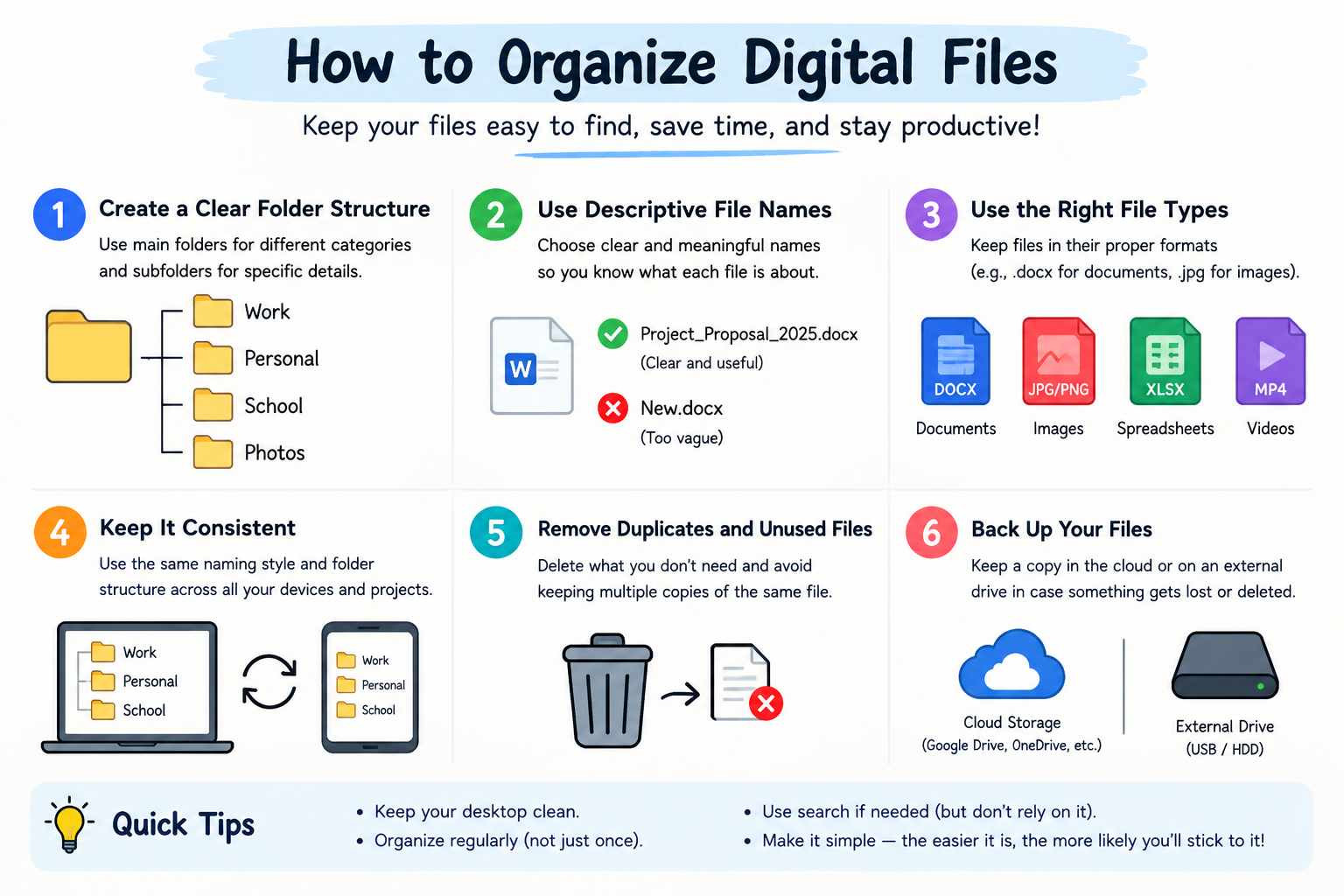
Learning how to organize digital files can make your computer, phone, and cloud storage much easier to manage. When files are scattered across the desktop, Downloads folder, external drives, and cloud services, finding an important document can become frustrating. A simple and consistent system can keep your files organized and make everyday work more efficient.
Why Is It Important to Organize Digital Files?
Organizing digital files helps you find documents, images, videos, and other important information quickly. It can also reduce duplicate files, prevent unnecessary clutter, and make backups easier.
A good digital organization system does not need to be complicated. The goal is to create a structure that makes sense to you and is easy to maintain over time.
1. Create Main Folders
The first step in learning how to organize digital files is creating a small number of main folders. These folders should represent the major areas of your digital life.
For example:
- Work
- Personal
- Projects
- Documents
- Photos
- Videos
- Finance
- Downloads
- Archive
Avoid creating too many main folders. A simple structure makes files easier to locate.
2. Create Subfolders for Projects
Large categories can be divided into smaller subfolders. For example, a Work folder could contain different projects:
Work
├── Client Projects
├── Reports
├── Marketing
├── Templates
└── Completed Projects
This approach keeps related files together and prevents one folder from becoming overloaded.
3. Use Clear File Names
File names are an important part of digital organization. Instead of using names such as document1.pdf or newfile.docx, use descriptive names that explain what the file contains.
For example:
2026-09-26-SEO-Report.pdf
is much easier to understand than:
report-final-new.pdf
A useful naming format is:
Date + Project + Description + Version
For example:
2026-09-26-Website-Report-v2.docx
Consistent naming also makes searching for files much easier.
4. Keep Your Desktop Clean
The desktop should not become a permanent storage location. Although saving files there can be convenient, too many desktop files quickly create clutter.
Move important files into their appropriate folders. You can keep a temporary folder such as Inbox for files that still need to be organized.
For example:
Desktop
└── Inbox
Review the Inbox regularly and move each file to its correct location.
5. Organize Your Downloads Folder
The Downloads folder often becomes one of the messiest areas on a computer. Downloaded images, documents, installers, PDFs, and other files can accumulate quickly.
Check your Downloads folder regularly. Move useful files into permanent folders and delete files you no longer need.
A simple weekly cleanup can prevent the folder from becoming overwhelming.
6. Separate Current and Completed Projects
If you work on multiple projects, separate active work from completed work.
For example:
Projects
├── Active
│   ├── Project A
│   └── Project B
└── Archive
    ├── 2025
    └── 2026
This makes it easier to focus on current projects while keeping older files available when needed.
7. Use Version Numbers
When editing an important document, avoid creating confusing names such as:
final.docxfinal2.docxfinal-new.docxfinal-latest.docx
Instead, use version numbers:
Report-v1.docxReport-v2.docxReport-v3.docx
This makes it easier to identify different versions and reduces confusion.
8. Remove Duplicate and Unnecessary Files
Over time, digital storage can fill with duplicate photos, old downloads, temporary files, and outdated documents.
During a regular cleanup, look for:
- Duplicate documents
- Old downloads
- Unused installers
- Temporary files
- Outdated project versions
- Duplicate photos and videos
Delete files you are certain you no longer need. If you are unsure, move them to an Archive folder before deleting them permanently.
9. Create an Archive Folder
An Archive folder is useful for files that you do not regularly need but still want to keep.
For example:
Archive
├── 2024
├── 2025
└── 2026
You can move completed projects and older documents into the appropriate year. This keeps your active folders clean without forcing you to delete potentially useful information.
10. Back Up Important Digital Files
File organization should always be combined with backups. A well-organized computer can still lose important information because of hardware failure, accidental deletion, or other problems.
Keep copies of important files in a separate backup location, such as an external drive or reliable cloud storage.
Important files may include:
- Personal documents
- Financial records
- Work projects
- Family photos
- Videos
- Important certificates
- Business files
Regular backups provide an additional layer of protection.
11. Use the Same System Everywhere
If you use multiple devices, try to follow the same organization system on each one.
For example, you might use:
Documents
Photos
Projects
Work
Personal
Archive
on your computer and use similar categories in your cloud storage.
Consistency makes it easier to locate files regardless of which device you are using.
12. Schedule Regular Digital Cleanup
Knowing how to organize digital files is useful, but maintaining the system is even more important.
Set aside a few minutes every week or month to:
- Clean the Desktop
- Review Downloads
- Delete unnecessary files
- Rename unclear files
- Archive completed projects
- Remove duplicates
- Check backups
Small, regular cleanups are much easier than trying to organize thousands of files at once.
Final Thoughts
Learning how to organize digital files does not require complicated software or a huge folder structure. Start with a few logical folders, use clear file names, separate active projects from archived files, and regularly remove unnecessary clutter.
The most important thing is consistency. Once you create a simple system and follow it regularly, finding files becomes faster and your digital workspace stays clean and manageable.
Leave a Reply